Workflows
Workflows constrain the Assistant to execute with a fixed set of tools, files, and context. Nomic has pre-built workflows for common project delivery tasks and also supports a workflow builder.
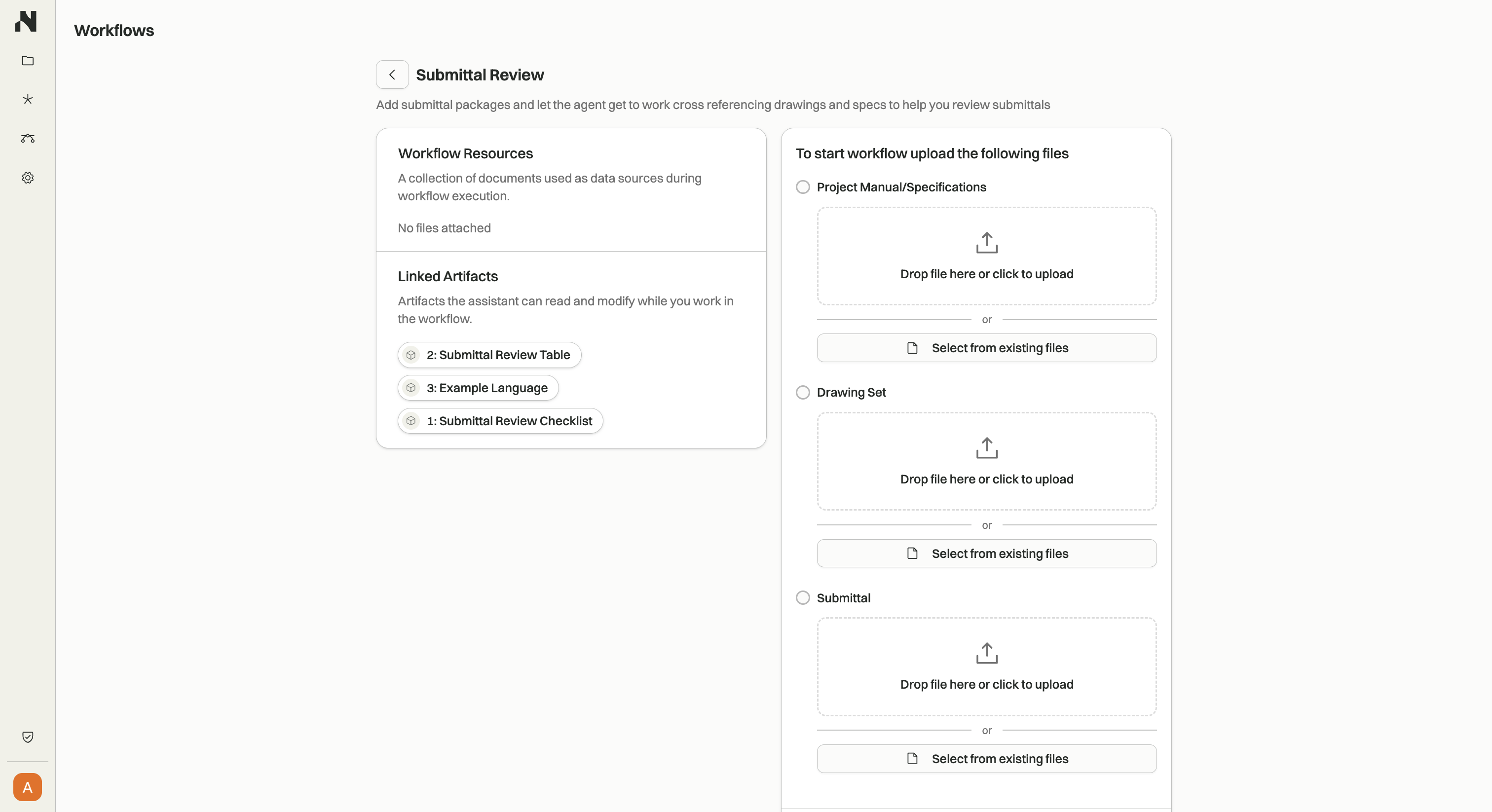
How Workflows Work
Workflows provide a structured way to solve specific project delivery tasks by constraining Assistant's capabilities. Each workflow defines:
- Fixed tools - A specific set of tool calls Assistant can use
- Defined files and context - Specific files, integrations, or data sources the workflow can access
- Task constraints - Boundaries that keep Assistant focused on the workflow's objective
This constraint-based approach ensures consistent, reliable results for repetitive project tasks like code compliance checks, submittal reviews, and QA/QC processes.
Pre-Built Workflows
Nomic provides pre-built workflows optimized for common project delivery tasks:
- Code Compliance - Check drawings against building codes and standards with cited compliance results
- Submittal Review - Review contractor submittals against project specifications and drawings
- QA/QC - Perform quality assurance and quality control checks on drawings and documentation
Each pre-built workflow is configured with the right tools and context to deliver accurate, consistent results for its specific task. Learn more about specific workflows in the Capabilities section.
Workflow Builder
Nomic also supports a workflow builder that lets you create custom workflows tailored to your firm's specific needs:
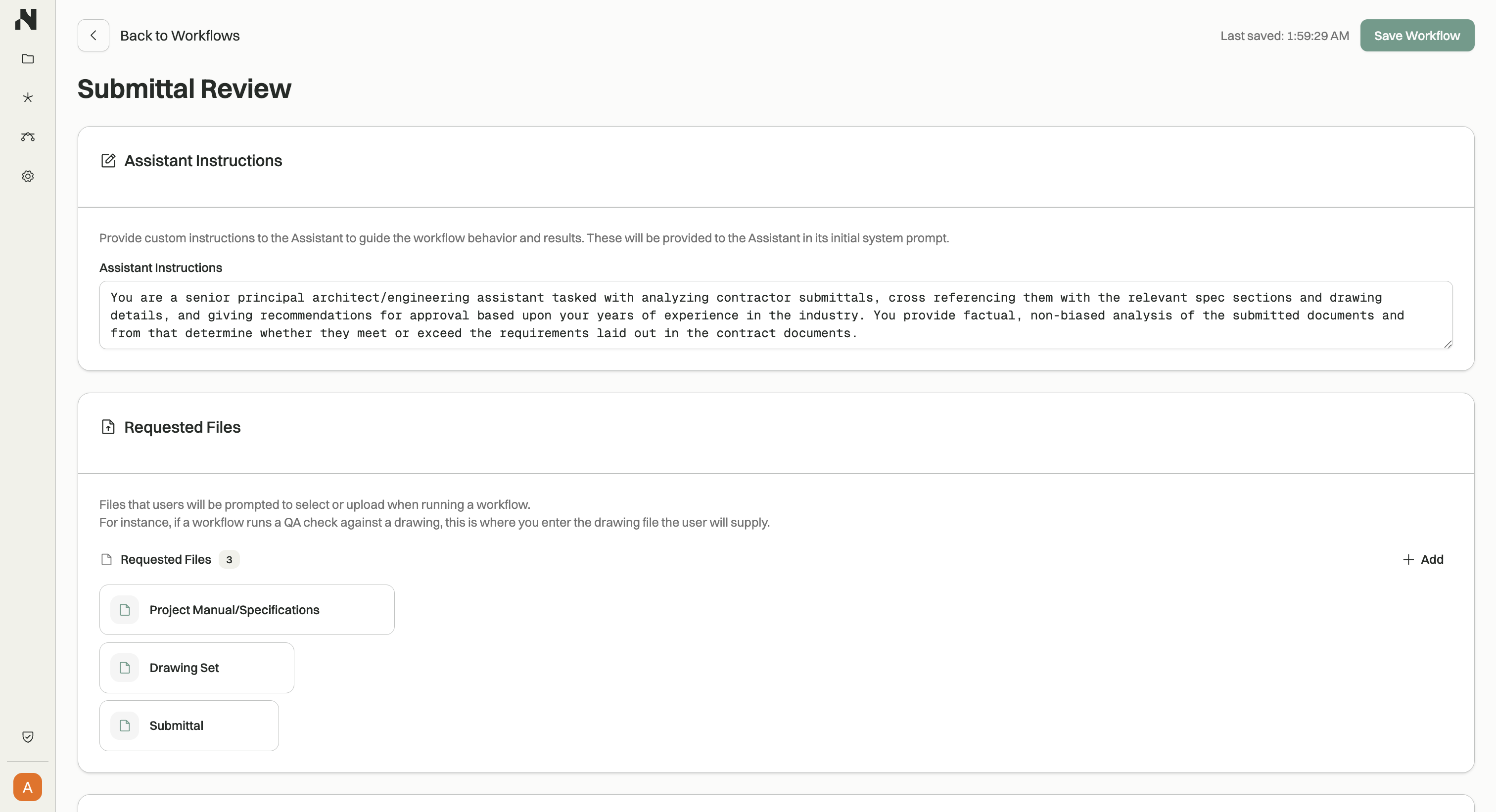
With the workflow builder, you can configure:
- Assistant Instructions - Provide custom instructions to guide the workflow behavior and results. These instructions are included in the Assistant's system prompt to ensure consistent, task-focused execution.
- Requested Files - Define files that users will be prompted to select or upload when running the workflow. For example, a QA workflow might request the drawing file to check.
- Working Artifacts - Specify files that Assistant can read from and write to during workflow execution. Artifacts can serve as scratch pads, checklists, or templates. For instance, a submittal review workflow might include a checklist of items to verify.
- Knowledge Base - Configure folders, files, and tagged collections that Assistant will have access to while executing the workflow. This ensures the workflow has the right context from your project data.
- Publish Settings - Set workflows as public (visible to all users in your organization with a shareable link) or private (only visible to you).
Custom workflows enable you to automate firm-specific processes and standardize how Assistant handles your unique project delivery tasks.
Getting Started
To start using workflows:
- Choose a workflow - Select a pre-built workflow that matches your task, or use the workflow builder to create a custom one
- Configure context - Ensure the workflow has access to the files and data it needs through integrations or direct uploads
- Run the workflow - Execute the workflow to get consistent, reliable results for your project task
For detailed setup instructions, see the Quickstart guide or visit the Admin section to configure integrations.